Iwacu
Manage Page and Sync
The people table, syncing your own devices, and settings.
This is the summer 2026 guide.
Some of it has changed since. A new guide (v1) is being written.
Manage Page and Sync
Open Manage from the toolbar or go to /manage. This is the data management layer — a table view of your entire tree alongside device sync and settings.
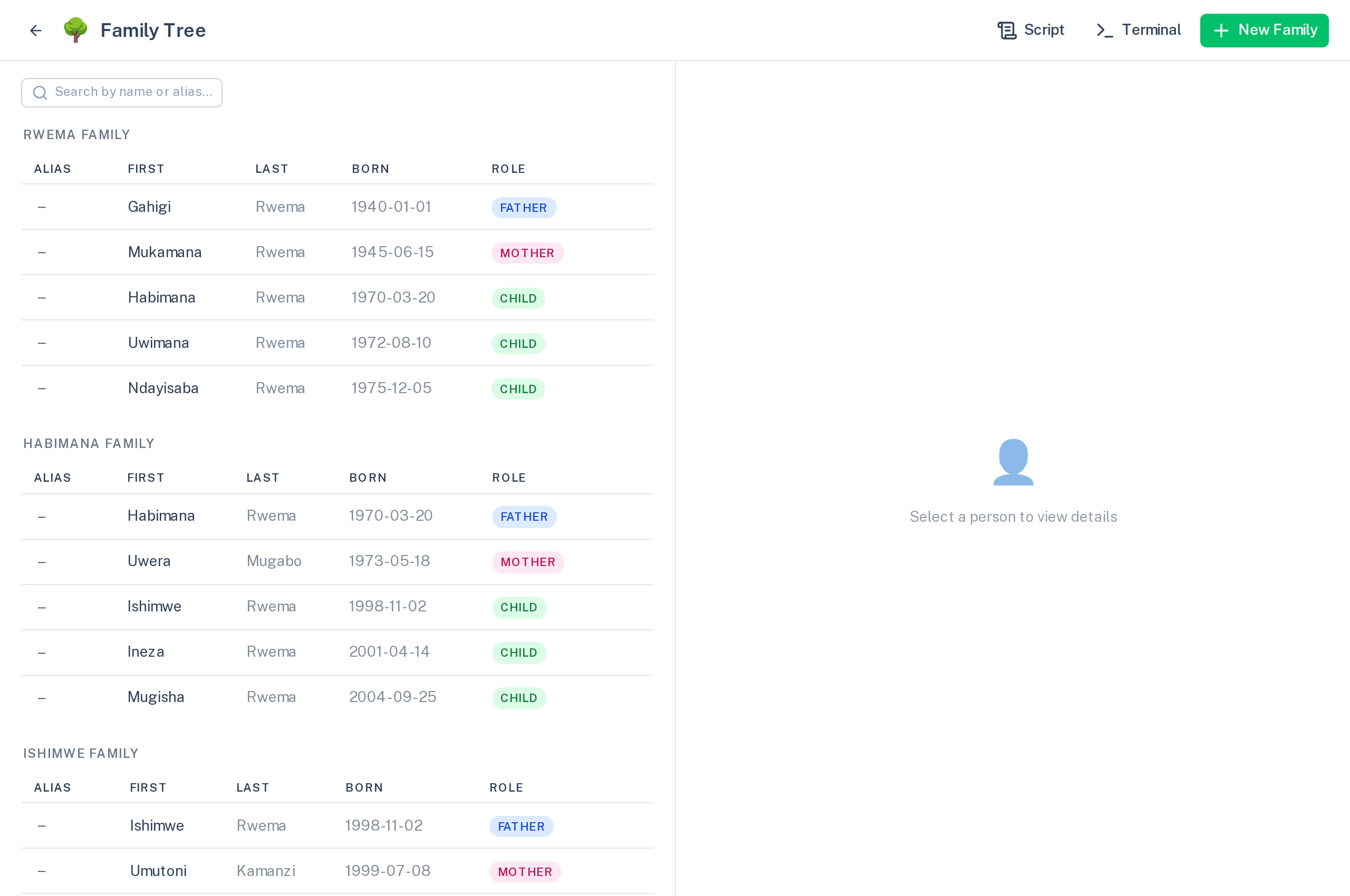
People table
All people are listed in a grouped table, one row per person per family membership. From here you can:
- Edit inline — click any name, date, or gender field to edit it directly.
- Add a family — tap + New Family to create a couple and family node through a form (the same as
family couplein the terminal). - Manage aliases — the alias column shows each person's short name; click to change it.
Device sync
The Sync → My devices section keeps the tree in sync across your own devices without sharing access with anyone else.
Pairing a second device:
- On the first device, tap Enable sync → Show pair QR.
- On the second device, tap Scan pair QR (or paste the pair code manually).
- Both devices connect to the same private cell on the relay. Changes appear within seconds.
The pair code format is iwacu://devicesync/<id>/<secret>?relay=<url>. The relay receives only encrypted payloads — it cannot read your tree.
A coloured dot shows connection state:
- Green — connected and syncing
- Grey — not connected
This pairs a tree, specifically — it syncs your family data between two devices you already use. If what you actually want is a brand-new browser or desktop install with your full identity on it (communities, everything), that's device linking instead — see Desktop app and devices.
Settings
The ⚙ icon in the toolbar opens settings:
- Display name — the name others see in group chats.
- Identity QR / bundle export — export your Ed25519 identity for use in abantu. See Using your identity with abantu.
- Relay URL — the WebSocket relay your sync uses. Change this if you self-host.
Family history and the atlas