Listings and Messaging
Listings and Messaging
Posting a listing
Go to the Sell tab and tap + New Listing. Fill in:
| Field | Required | Notes |
|---|---|---|
| Title | Yes | Short and clear |
| Description | Yes | Honest and complete |
| Price | Yes | Include currency |
| Category | Yes | Used for filtering |
Tap Post. Your listing is broadcast immediately to your connected peers.
Listings expire after 7 days by default. Repost if the item is still available.
Attaching a delivery protocol
If your community has published a delivery protocol in abantu, you can attach it to a listing so every buyer follows the same tracked procedure:
- In abantu, open the published delivery protocol and copy its isoko link (it starts with
isoko-proto:). - In isoko's Sell tab, paste the link into the delivery protocol field while creating the listing.
- The listing now carries the protocol — its steps, deadlines, evidence requirements, and any named intermediaries.
Buyers see a 📦 Protocol badge on the listing and the full step plan on the detail page before they commit.
Finding listings
The Browse tab shows all listings that have reached your device from the network. Use the search bar to filter by keyword or category.
Listings from people closer to you in the trust graph appear first. A listing from a direct peer ranks above one relayed three hops away.
Messaging a seller
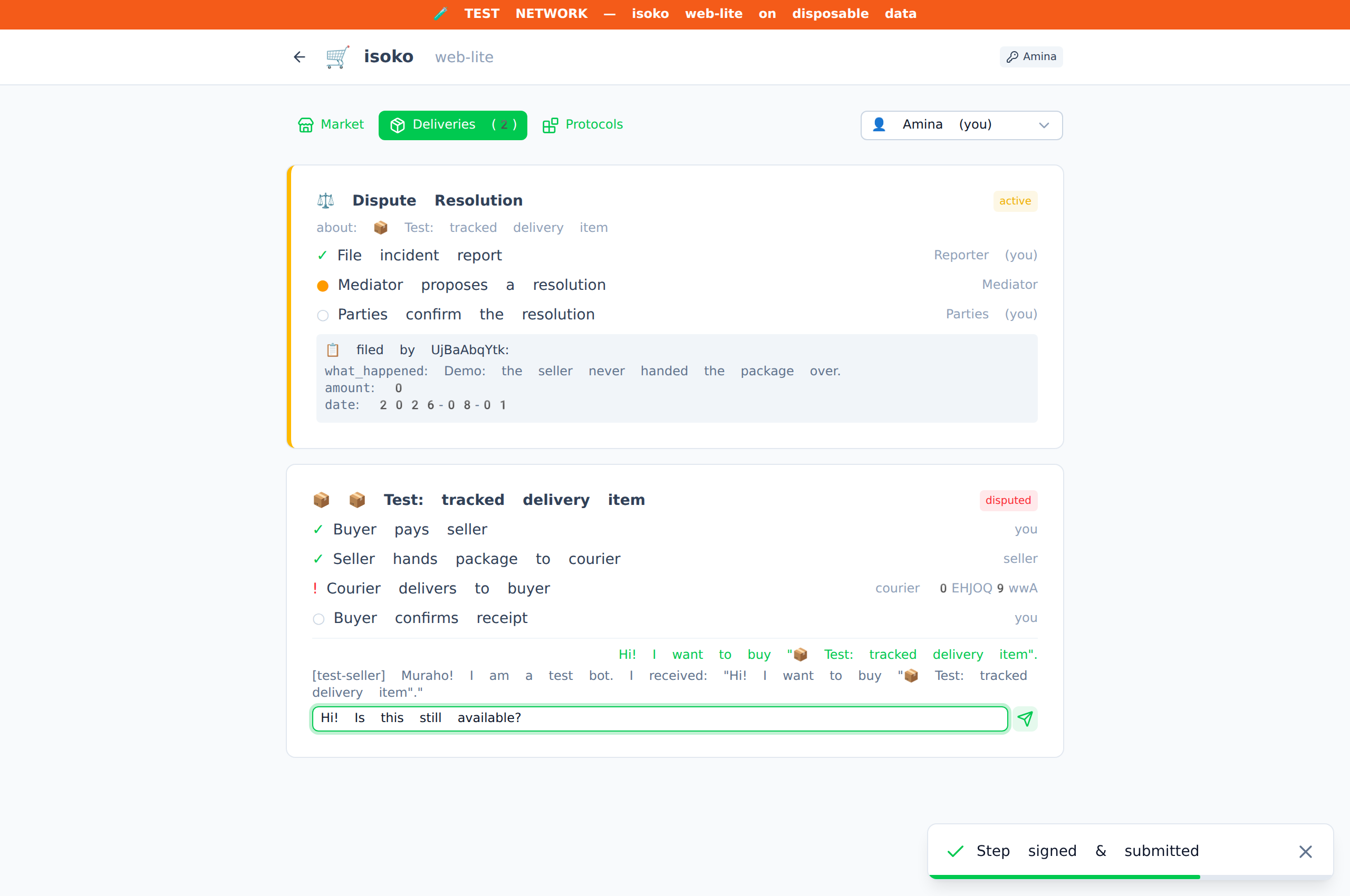
Tap a listing and tap Message seller. This opens a direct, encrypted message thread using the same connection protocol as iwacu's person chat.
You never need to know the seller's name or phone number. The app handles the connection.
Voice messages
The Chats screen supports voice messages alongside text — press and hold 🎤 to record, release to send. The microphone button appears once you adopt the Voice Messages protocol in Settings.
- Recording starts immediately when you press the button. A red bar appears at the top of the input row showing Recording… release to send.
- Release the button to stop and send. The voice note is encoded and transmitted over your encrypted connection.
- Received voice messages appear as a bubble with a ▶ play button and the duration in seconds. Tap to play, tap again to stop.
Voice messages are end-to-end encrypted — the relay receives only ciphertext, the same as text messages.
Connecting to a peer
Before you can message someone, you need a DIDComm connection with them. There are two ways:
You invite them: Go to Chats → + Invite. A link is generated. Share it with the person you want to connect with. When they tap Connect and paste the link, the connection is established.
They invite you: Tap Chats → Connect. Paste the link they sent you.
Once connected, you will see them in your chat list. The connection is end-to-end encrypted and does not require a central server to remain active.
Gifting credits in chat
If you have adopted Community Credits, a ⭐ button appears in chats. Tap it to gift CC to the person you are talking to — a thank-you for a smooth trade, help with a delivery, or anything the community values. The gift is signed and transferred over the encrypted connection.
Tracked deliveries