Projects
Projects
Projects are shared workspaces inside a community. Each project has its own task list, goal tracker, and chat.
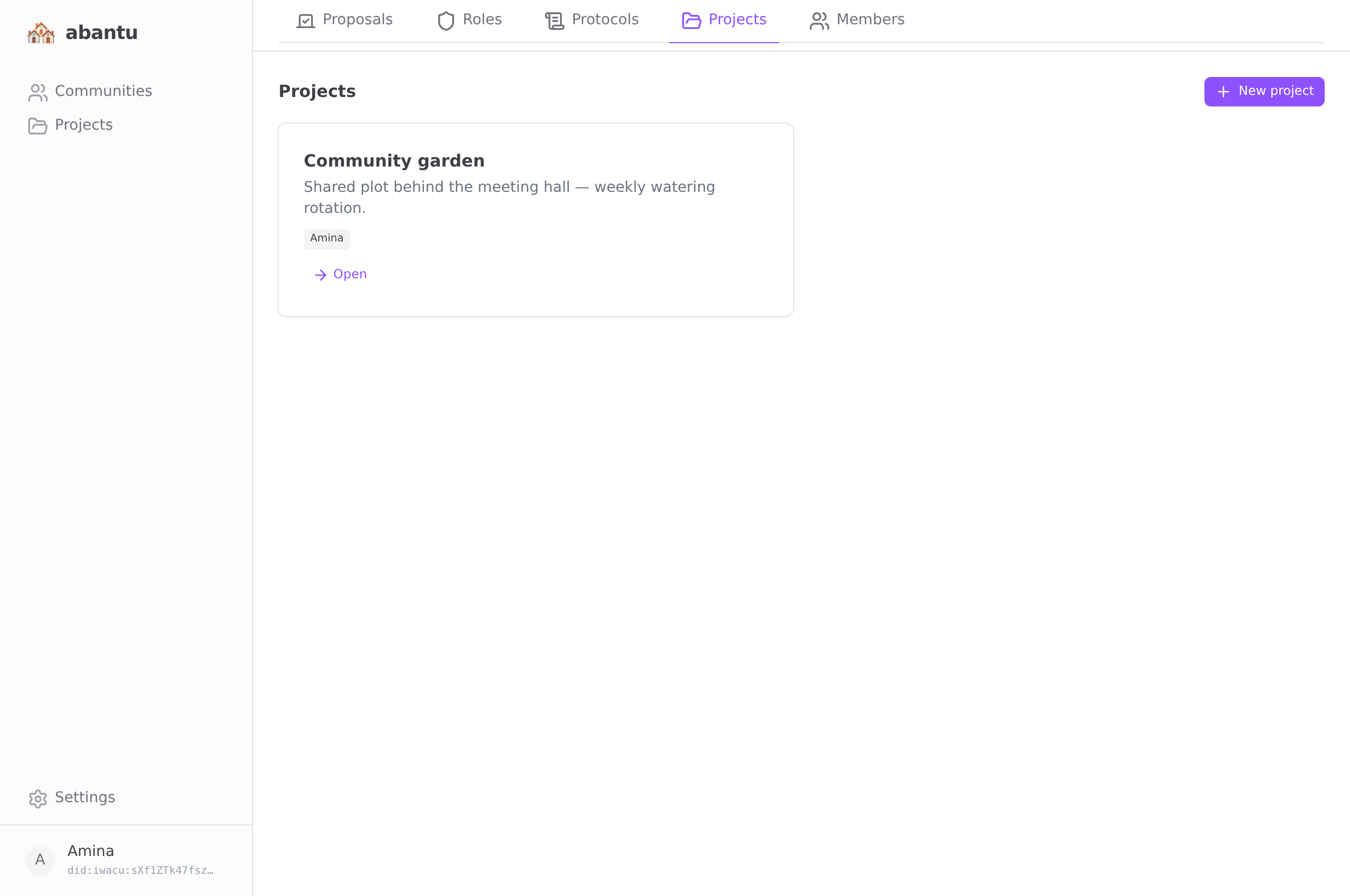
Creating a project
Go to the Projects tab and tap New project.
| Field | Notes |
|---|---|
| Title | Short. This is the label in the list. |
| Description | What is this project trying to accomplish? |
| Required protocols | Optional. Members must have adopted these protocols before they can join. |
Required protocols are a consent mechanism. If your project involves handling personal data, you can require members to adopt a privacy agreement before they can participate.
Joining a project
Open the project and tap Join. If the project has required protocols you have not yet adopted, you will see which ones are missing. Adopt them first, then try again.
Project tabs
Overview — Description, required protocols with your adoption status, project goals, and quick stats.
Tasks — The task list. Filter by all / open / assigned to me / completed. Each task shows its assignee, due date, and progress notes.
Rotation — The lead rotation schedule, if one has been adopted. Shows who leads which phase, when, and what they produced.
Chat — Text chat, private to the project members.
Tasks
Any member can create a task:
- Go to Tasks → New task.
- Write a title and description.
- Assign it to a member.
- Optionally set a due date.
The assignee can add progress notes, which appear as a thread on the task. When the work is done, tap Mark complete.
Goals
Goals are the outcomes the project is working toward. Add them in the Overview tab. Mark a goal complete when it is done; the progress bar reflects how many goals have been reached.
Lead rotation
A lead rotation assigns one member to be the responsible lead for a fixed period, cycling through all contributors in turn. This prevents any one person from becoming a permanent gatekeeper.
To adopt a rotation, tap Adopt rotation in the Rotation tab. Choose:
| Setting | Meaning |
|---|---|
| Rotation days | How many days each lead holds the position |
| Phases | Optional names for each rotation period |
The current lead can declare the phase name and write a summary at the end of their term. Past summaries are visible in the Rotation tab.
Proposals and roles